Roles: Administrator & Employee | Interface: Web
Create a New Template:
- Go to the report tab and click the plus sign to create a new report template.
- To create a new report, simply go through the five tabs and fill in the details based on what you need.
Enter Details
Name: Enter a unique name using letters and numbers only. No spaces or special characters.
Category: Select a category from the drop-down list based on your access.
File Type: Choose Excel or PDF. PDF limits column selection.
Description: Add an optional description (up to 1024 characters).
Note: Duplication of report template names is prohibited by the system.
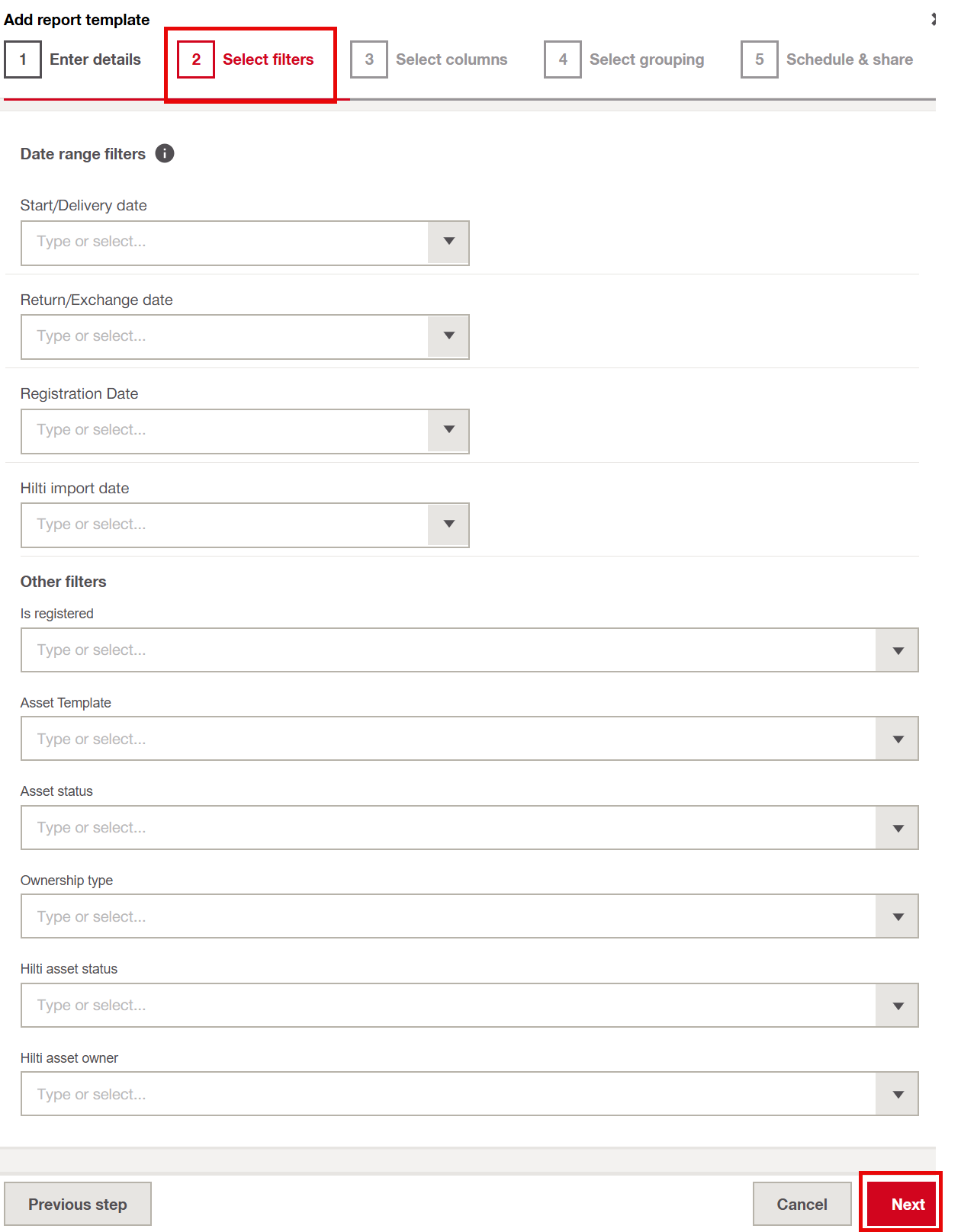
Select Filters
When you create a report from start, you need to select the desired filters like date and other filters as per your requirements.
For some reports, you can also use date range filters, but only when dates are relevant. This applies to reports like activity or transfer reports.
However, reports that show the current status, such as inventory reports, don’t support date filters.
Select columns
You can add relevant columns at this step as per your requirement. The pdf.-Output format can only handle max. 10 columns because of space. You need to change to Excel output in step 1 (Enter details) or reduce the number of selected columns.
Select grouping
Grouping helps organize the report by sorting related data into sections.
Schedule and Share
Here you can define whether they want this report to be generated just once, or on a recurring basis. This can be: Daily, Weekly or Monthly.
Also you can define to which email addresses to send this report to, or if the report simply stays in the 'generated reports' section of the Admin's ON!Track 3 web application.
Generated reports will be deleted after 90 days.
Duplicate from a exisiting template:
- Start with duplicating report template. There are some that are by default available or you can choose the other created report templates.
- Duplicate the report you'd like to start from and configure to your needs.
- Follow the same five steps you would when creating a new report.
- All the details will already be filled in for you. You just need to check everything, make any changes you want, and click Complete to finish.
Related to