ON!Track Web Portal
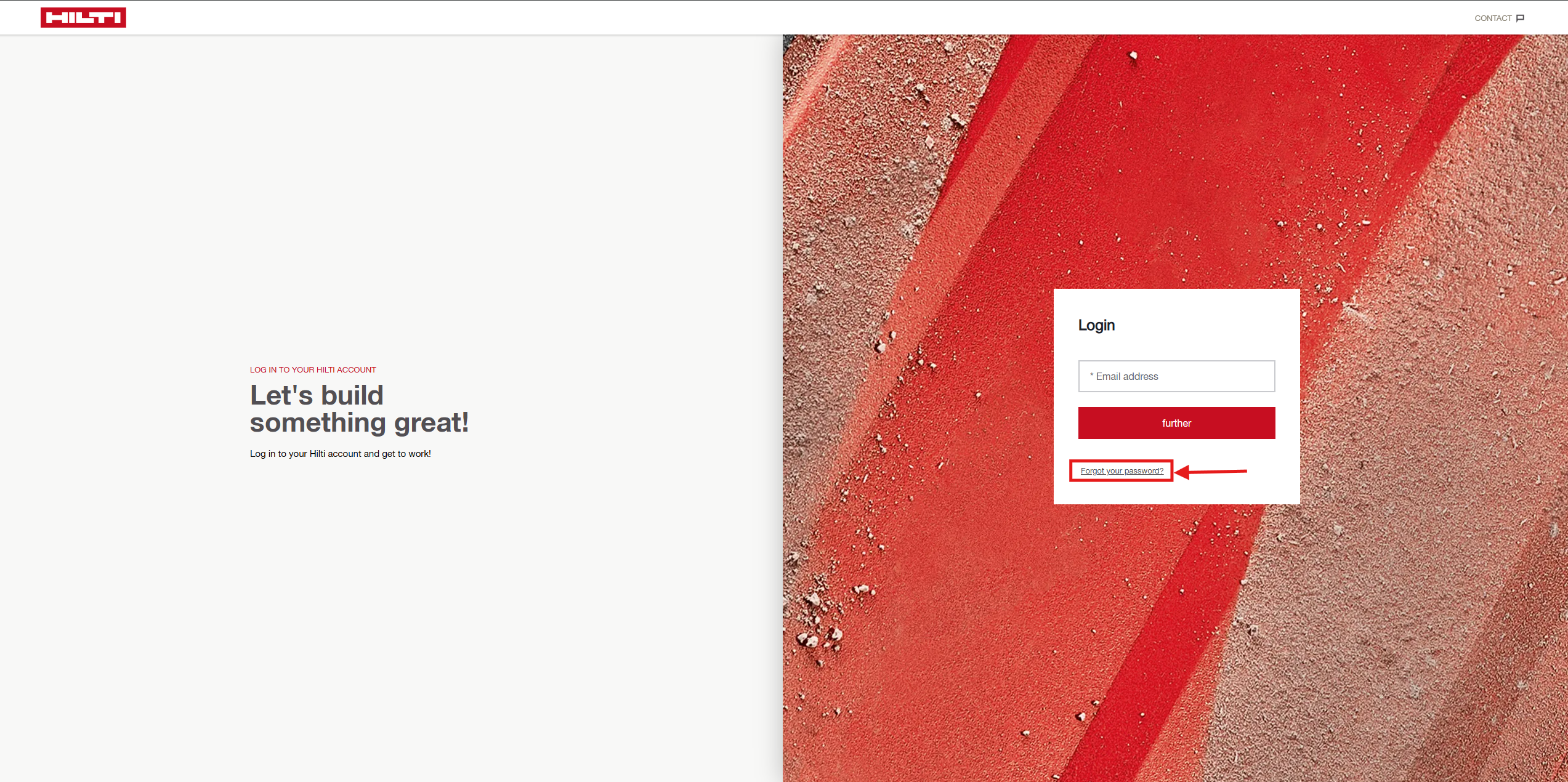
- Go to the normal ON!Track login page (Hilti Online / ON!Track portal).
- On the login screen, click “Forgot password”.
- Enter the email address you use for your ON!Track login.
- Submit the form.
- You will receive a reset‑password email from Hilti’s identity system (Hilti IDM).
- Open the email and click the reset link, then set a new password and confirm it.
Please note :
- You must have a valid email address on your ON!Track user.
- Domain users (no email): password must be managed by your admin/IT, not via Forgot password.
ON!Track Mobile App
- Open the ON!Track mobile app.
- On the login screen, tap “Forgot password”.
- Enter your login email and confirm.
- Check your email inbox, open the reset‑password email, and follow the link.
- Set and confirm your new password, then return to the app and log in.
If the email does not arrive / link doesn’t work
- Make sure you used the correct email (the one stored on your ON!Track worker account).
- Check spam/junk folder.
- If still no email, or the link is expired:
- Contact your ON!Track admin (they can check your user and email),
- Or contact Hilti Customer Service / local support.
Related to